
SEOMURAI Documentation
Fetch a page the way Googlebot, an AI crawler or a smartphone does.
The user agent switcher reloads the current tab with a different user agent: 13 profiles from Googlebot to Safari, custom user agents and a selectable language. SEOMURAI’s checks on that page then ask as the same client. Back to the documentation overview.
Free in every SEOMURAI plan.
What the user agent switcher does
Many websites serve different content per client: a mobile version for smartphones, a blocked area for AI crawlers, a redirect for bots. The switcher shows you these responses right in the browser, without a command line.
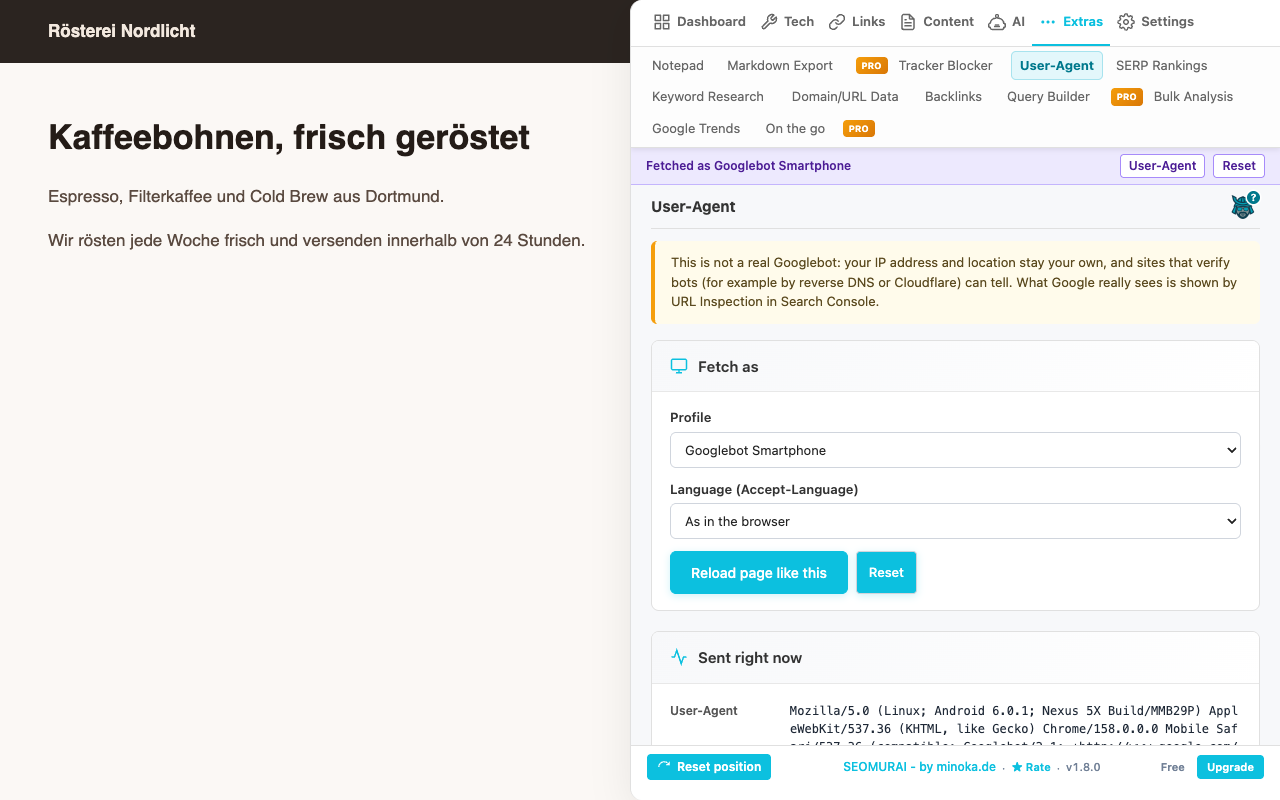
You find it under Extras → User-Agent. Pick a profile from four groups: Search engines (Googlebot Smartphone, Googlebot Desktop, Bingbot), AI crawlers (GPTBot, ChatGPT-User, OAI-SearchBot, PerplexityBot, Perplexity-User, ClaudeBot), Devices and browsers (smartphone and desktop browsers, such as Android (Chrome), Firefox (Windows) and Safari (macOS)) and Your own. Under “Language (Accept-Language)” you can choose one of eleven languages or keep “As in the browser”.
What the new user agent applies to
- The page itself: the main document, frames, scripts, images, stylesheets and the page’s own requests go out with the selected user agent.
- The page’s JavaScript:
navigator.userAgentand related values match the profile, so branches in the script see the same answer as the server. - Client hints: the Android (Chrome) profile sends matching client hints; all other profiles remove them so they do not contradict the user agent.
- SEOMURAI’s checks: robots.txt, AI Bot Checker, sitemap, link status, hreflang and the canonical target ask as the same client. Requests to AI providers, DataForSEO and webhooks stay unchanged.
Step by step
1. Open the tab
Open the panel and go to Extras → User-Agent. The notice at the top reminds you that your IP address and location stay your own.
2. Choose profile and language
Under “Profile” choose, for example, Googlebot Smartphone, and a language if needed. Choosing alone does not send anything yet.
3. Reload the page
A click on “Reload page like this” reloads the tab without cache and reopens the panel on the User-Agent tab. The card “Sent right now” shows what actually went to the server.
4. Check the result
In the panel, every section now shows the strip “Fetched as …”, and the toolbar icon carries the purple UA badge. Check HTTP headers, Redirect Path or robots.txt: everything applies to the chosen client.
5. Reset
“Reset” in the tab or in the strip removes the profile and reloads the page. Closing the tab removes it as well.
Custom user agents and context menu
Choose “Custom User-Agent …”, enter the string and give it a name under “Name to save it under”. After “Save” it appears in the group “Your own” and in the context menu; you can keep up to ten custom user agents. A string can also be applied once without saving it.
It is faster with a right-click on the page: “Open page as” lists all profiles and your own, plus “Reset User-Agent”. The entry appears as long as the switch “Analyze with SEOMURAI” under Settings → Context Menu is on (default).
Frequently asked questions
Tips and frequently asked questions
Is this a real Googlebot?
No. The server sees Googlebot’s user agent, but your IP address and location. Websites that verify bots by reverse DNS or through services such as Cloudflare can tell. What Google really sees is shown by URL Inspection in Search Console.
How long does a profile apply?
To this one tab, also while you keep navigating in it. It ends with “Reset”, when you close the tab and at the latest when the browser restarts. Other tabs are never affected.
Does SEOMURAI emulate a smartphone with this?
Only the identifier, not the device: window width and touch events remain those of the browser. For the layout, use the device toolbar of Chrome DevTools.
Does the user agent also apply after a redirect to another domain?
The page in the tab keeps the chosen user agent on the new domain as well. SEOMURAI’s checks only ask as this client for the checked domain and its subdomains; there, a redirect to a different domain goes out with your real user agent. Web workers of the page also see the real values.
Does the switcher cost anything?
No, it is included in every plan.
More topics in the documentation
Jump directly to the detail page for another menu.
- Overview: Getting started with SEOMURAI
- Dashboard: score, Key Issues and Quick Actions
- Links: Statistics, Analysis, Duplicates, Outlink Checker
- Content: Text Analysis, Keyword Highlighter, Image SEO, Image Analysis
- AI: LLMS.TXT Info and PRO modules
- DataForSEO: SERP, keywords, domain data and backlinks (BYOK)
- External checkers: W3C validator, Rich Results Test and context menu
- Settings: Language, API keys, backup and account
- Tech SEO: meta, headings, schema, headers, Redirect Path, robots.txt and sitemap
- Quick access and icon: bubble on every page, page state in the toolbar
Want to try this feature directly in your browser?
Install SEOMURAI and see your most important page once the way Googlebot Smartphone fetches it.