
SEOMURAI Documentation
Your first SEO analysis in 60 seconds.
This page contains everything you need to get started with SEOMURAI: installation, your first analysis, a short tour of the seven menus and pointers to the next sensible steps. If you would like an overview of the features first, you will find it on the overview page.
No sign-up. No configuration. Works on any page.
Installation
Two short steps, and the extension is one click away at any time.
1. Install from the Chrome Web Store
Open the SEOMURAI listing in the Chrome Web Store and click “Add to Chrome”. Chrome confirms the installation with a short notice at the top of the screen. No sign-up or account is required, the extension is ready to use immediately.
2. Pin it to the toolbar
Click the puzzle icon (Extensions) at the top right of Chrome, find SEOMURAI in the list and select “Pin to toolbar”. The SEOMURAI icon then appears permanently next to the address bar and is one click away on every page. We explicitly recommend this step, because otherwise SEOMURAI stays hidden behind the puzzle icon.
Installation complete. Now open any web page you want to analyze and continue with the next section.
Your first analysis
From clicking the icon to your first concrete improvement takes exactly five steps. You can follow this workflow on any page.
1. Open any page
SEOMURAI works on any regular web page, on staging environments and also on localhost. It does not matter whether the page is publicly reachable, because the analysis runs entirely locally in your browser. An internet connection is only needed when you additionally use external services such as DataForSEO or an AI provider.
2. Click the SEOMURAI icon
The overlay opens at the top right edge of the screen and does not hide the actual page content. You can grab the overlay by its header and drag it to any position. The next time you open it, it appears in exactly that spot again. The “Reset position” button in the footer takes you back to the default position at any time.
3. Read the dashboard
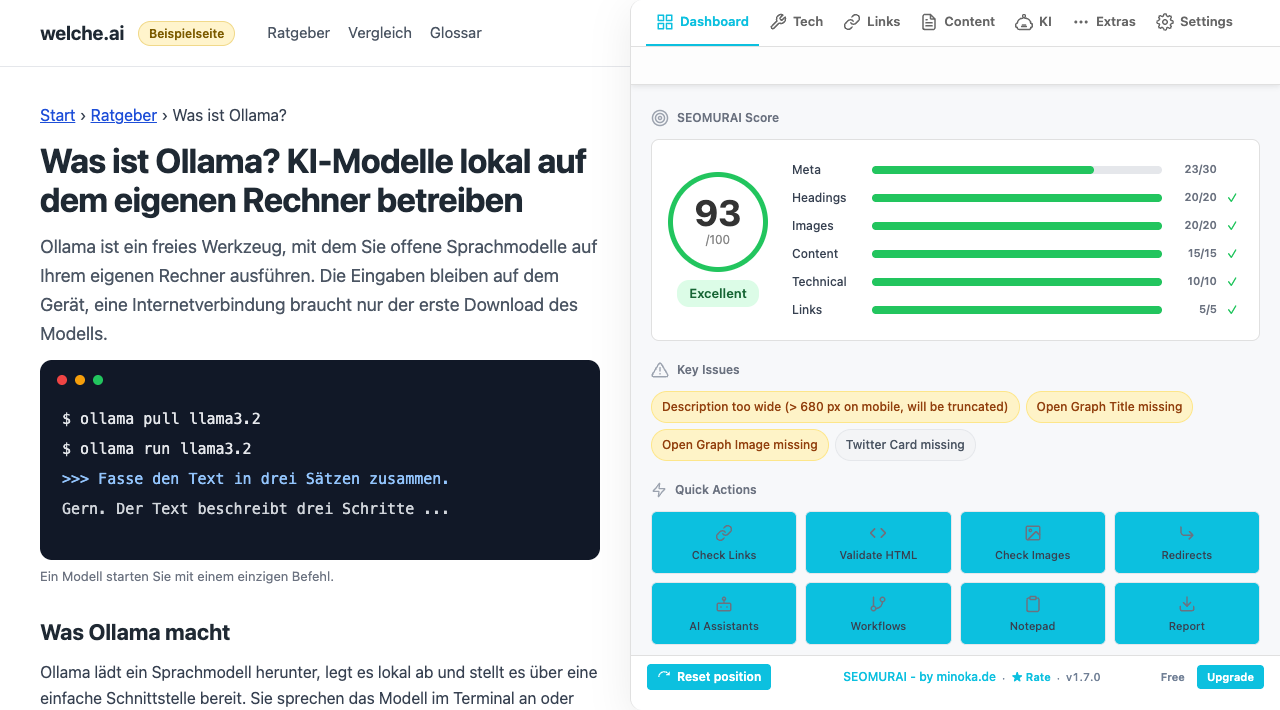
The dashboard is the default view and gives you three pieces of information right away:
- SEOMURAI score: A color-coded overall rating from 0 to 100, weighted by the most important on-page factors.
- Key Issues: The most urgent findings on the page, five at most. Each entry is clickable and takes you straight to the matching tab.
- Quick Overview: A compact overview of content, structure, links, images, meta and technical signals.
If the score is green, the basics are in good shape. If it is yellow or red, it is worth fixing at least the top issue.
4. Fix the most important issue
Click the top issue, for example “H1 missing” or “Meta description too short”. SEOMURAI automatically switches to the matching tab (for example Tech SEO → Meta) and shows the corresponding recommendation along with a note on proven best practices. Apply the recommendation in your CMS or source code. For longer explanations, expand the small help box (colored cyan) above the respective tab.
5. Analyze again
Reload the browser tab and open SEOMURAI again. The analysis is recalculated from scratch, the score rises visibly and the issue you just fixed disappears from the list. Repeat the workflow for the remaining findings until the score is green. An average page reaches a solid state in ten to fifteen minutes.
Straight to a detail page
All detail pages as a compact URL list, in case you already know the topic you are looking for.
- Dashboard: score, Key Issues and Quick Actions
- Tech SEO: Meta, Schema, Headings and seven more subtabs
- Links: Statistics, Analyse, Duplicates, Outlink Checker
- Content: Text Analysis, Keyword Highlighter, Image SEO, Image Analysis
- KI: LLMS.TXT Info and PRO modules
- DataForSEO: SERP, keywords, domain data, backlinks, AI Visibility, Ask the LLMs and Google Trends (BYOK)
- External checkers: W3C validator, Rich Results Test and context menu
- Settings: language, API keys, backup and account
- PRO overview: Link Heatmap, Sitemap Explorer, Chatbot, LLM Team, Webhooks, AI Presets, Markdown Export
What comes next?
Four sensible paths once you are familiar with the basics.
Set up DataForSEO
Store your own DataForSEO credentials under Settings → Credentials and unlock SERP, Keyword Research, domain data, backlink analysis, AI Visibility, Ask the LLMs and Google Trends. Billing runs directly through DataForSEO, we do not add a markup. CSV and JSON exports are included here even in the free plan.
Connect your own AI workflows (PRO)
Send page data via webhook to n8n, Zapier or Make, or use the LLM SEO Team assistants with your own API keys. In the Webhooks tab you will find two pre-made starter templates (Google Sheet, Notion) that you can adopt with a single click.
Unlock PRO
PRO extends SEOMURAI with Link Heatmap, Sitemap Explorer, Chatbot, LLM SEO Team, Webhook Workflows, AI Presets, Markdown Export and all non-DataForSEO CSV exports. 5 USD per month or 50 USD per year, handled through ExtensionPay, and you can cancel at any time effective from the next period. You will find all modules in detail in the PRO documentation.
Understand privacy
All analyses run locally in your browser, API keys are never sent to our servers, and there is no tracking. External services are contacted only when you explicitly configure them. You will find the complete details in the privacy policy.
Help and resources
Four central places to go if you are looking for further information or want to get in touch.
- ★ Rate SEOMURAI: Leave a review in the Chrome Web Store. An honest voice helps us and other users enormously.
- 💬 Send feedback: Open the feedback form. Bug reports, feature requests and general feedback reach us directly.
- 🔒 Privacy policy: Read the complete GDPR-compliant policy, with a responsible party based in Germany.
- 🛍 Chrome Web Store listing: SEOMURAI in the Chrome Web Store. Updates, release notes and the fastest way to install.
FAQ
Frequently asked questions about everyday use
Answers to the questions that come up most often after installation. General questions about pricing, BYOK and privacy are covered on the overview page.
I cannot see the SEOMURAI icon. Where do I find it?
Right after installation, Chrome often hides new extensions behind the puzzle icon at the top right of the toolbar. Click the puzzle icon, find SEOMURAI in the list and select “Pin to toolbar”. The icon is then permanently visible.
Fixed issues do not disappear from the list. What should I do?
SEOMURAI analyzes the page once when it opens and keeps the results for the current session. To make a fixed issue disappear, reload the browser tab (F5 or Ctrl + R) and then open SEOMURAI again. The analysis is recalculated from scratch and the updated state appears immediately.
How is the SEOMURAI score calculated?
The score (0 to 100) is a weighted aggregation of tech SEO signals (title, meta description, canonical, headings hierarchy, schema), content signals (word count, readability, images with alt text), link signals and technical signals (HTTP status, redirect path, viewport, language). The weighting follows established on-page best practices, and the primary goal is a fast, honest assessment rather than a purely cosmetic number.
Does SEOMURAI work on staging environments, behind logins and on localhost?
Yes. Because the analysis runs entirely locally in your browser, it does not matter whether the page is publicly reachable. You can use SEOMURAI on password-protected areas, staging servers, internal tools and on localhost, without any data leaving your machine.
Does SEOMURAI slow down page loading?
No. The analysis only runs when you actively click the SEOMURAI icon. Nothing runs in the background that noticeably affects page rendering or the performance of your browser. This also applies to the optional Tracker Blocker, which only becomes active when you explicitly enable it in the settings.
How do I change the language of the extension?
Open SEOMURAI, switch to the Settings → General tab and choose one of the fifteen available languages (German, English, Spanish, French, Turkish, Brazilian Portuguese, Italian, Japanese, Chinese, Russian, Korean, Dutch, Polish, Arabic and Hebrew). Arabic and Hebrew render fully right-to-left. Then click “Reload page” so the new language takes effect.
Can I analyze several pages at the same time?
SEOMURAI always analyzes exactly the page in which the icon is clicked. You can open another page in a second or third browser tab and start SEOMURAI there separately; each tab gets its own analysis. A cross-page evaluation of multiple URLs in a single run is deliberately not included, that is what classic crawlers are for.
Where does SEOMURAI store my notes, keyword lists and history?
In chrome.storage, and split in two: notes, settings, saved prompts, webhook workflows and your API keys in the synchronized storage, while the DataForSEO research history, the AI history and the keyword lists stay on the device. Nothing goes to our servers; when Chrome synchronization is active, Chrome carries the synchronized part to your other devices through your Google account. Via Settings → Backup & Restore you can export all data as a file and import it again on another device.
Why is the DataForSEO integration labeled “Beta”?
The seven DataForSEO features (SERP, Keyword Research, domain data, backlinks, AI Visibility, Ask the LLMs, Google Trends) are fully functional and in daily use. “Beta” here means that we continue to refine the interface and the evaluations step by step, based on feedback from real-world use. Nothing changes about the data itself, it comes directly from DataForSEO.
Ready to get started?
Install SEOMURAI, open any page and click the icon. You will be up and running in under a minute.