
SEOMURAI Documentation
Adapt SEOMURAI to your workflow.
Language, API keys, data backup and account management in one place. Set everything up once after installation, then return only when something changes. Go to the documentation overview.
Free in every SEOMURAI plan.
What the Settings tab in SEOMURAI does
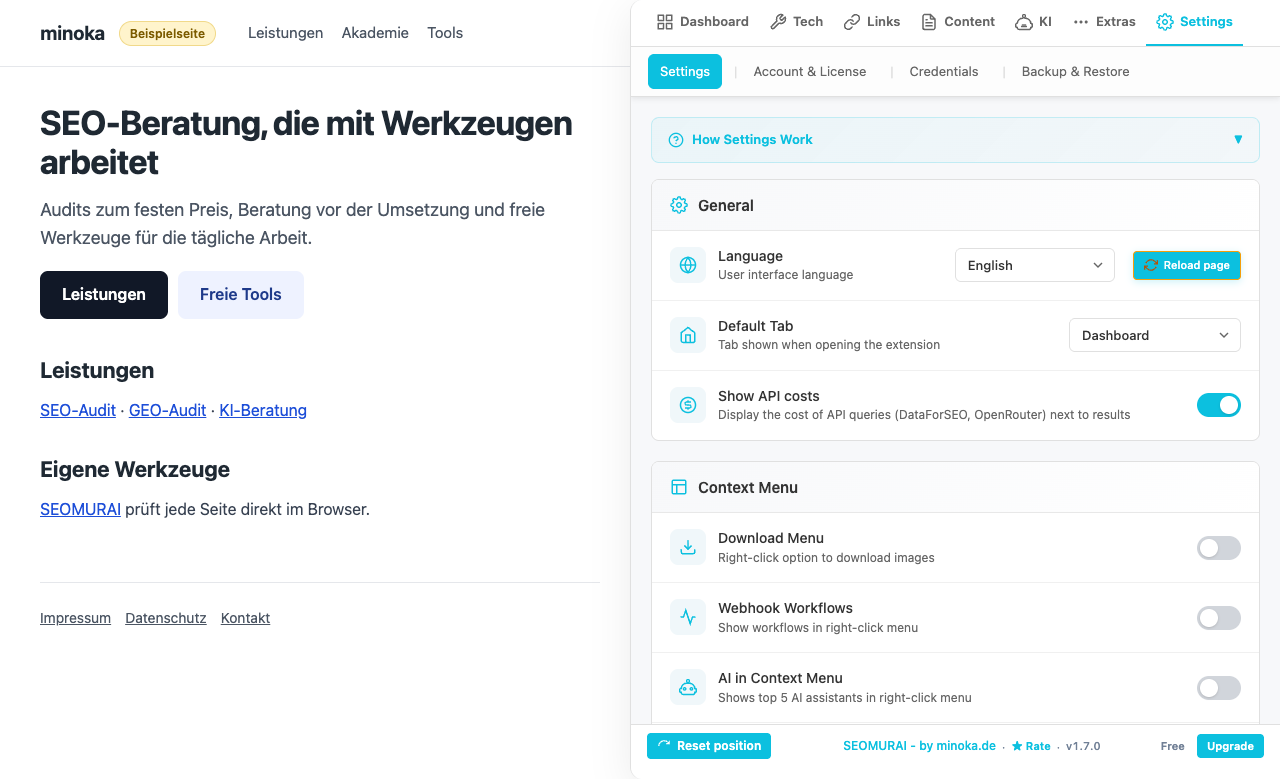
The Settings tab brings together everything that is not part of the analysis itself but concerns your personal setup. This includes the language of the extension, the default tab when the extension opens, storing your own API keys for the BYOK modules, managing your PRO account, and data backup.
Four subtabs make up this area: Settings with the General and Context Menu sections, Account & License, Credentials and Backup & Restore. You will find the Notepad under Extras. Each subtab is independent, so at any time you can edit only the part you actually need.
When this menu is especially useful
- Right after installation, to set the language, the default tab and, if needed, your API keys.
- When you want to use DataForSEO, OpenRouter, OpenAI, Anthropic or Gemini and need to enter your credentials.
- When you set up SEOMURAI on a second device and want to bring your configuration over from a backup.
- When you want to manage or cancel a PRO subscription, or sign in with your PRO status on a new device.
Step by step
1. General: language, default tab, context menu
The General area contains the basic settings. Choose one of the fifteen available languages (German, English, Spanish, French, Turkish, Brazilian Portuguese, Italian, Japanese, Chinese, Russian, Korean, Dutch, Polish, Arabic, Hebrew) and then click “Reload page” so the new language takes effect. Arabic and Hebrew render with full right-to-left support. You also set the default tab here, which is the tab that is active when the extension opens. In the Context Menu section below, you switch the right-click entries on or off per module.
Version 1.7 adds new toggles to this area. Show API costs (on by default) controls whether SEOMURAI displays the real billed API cost: per query with a session-wide total in the DataForSEO tabs, and the cost of the individual request for OpenRouter; turn it off to hide the cost lines. Two new context menu toggles, both on by default, cover the expanded right-click groups “Open in SEO tool” and “Analyze with SEOMURAI”.
2. Credentials: store your API keys
In the Credentials area you store your own credentials for the BYOK modules. They unlock the following features:
- DataForSEO: Login and password for SERP, Keyword Research, domain data and backlinks.
- OpenRouter: A single API key opens access to a broad range of AI models.
- OpenAI, Anthropic, Gemini: Direct API keys from the respective providers if you prefer to work without an intermediary.
The keys live in the synchronized storage of Chrome and are never transmitted to our servers. Billing runs directly through the respective provider, with no markup from us.
Since version 1.7 the Credentials area shows real provider logos, and each AI provider has its own test button that sends a tiny live request to a cheap model to verify the stored key. For DataForSEO, the area also displays your current account balance with a refresh button; the balance refreshes automatically after a successful connection test.
3. Account & License: manage PRO
The Account & License area shows your current status (Free or Pro), the version number and the entry point to PRO management via ExtensionPay. From here you can start a PRO subscription, sign in on a new device, cancel, or view your billing details. All payment processing runs through ExtensionPay; we do not process any payment data directly.
4. Backup & Restore: back up your configuration
Through Backup & Restore you export your complete SEOMURAI configuration as a file: settings, saved prompts, keyword lists and, optionally, API keys. On a new device you import the file and are ready to work again in seconds. The format is human readable (JSON), so you can also remove specific parts if you want to pass on a reduced configuration.
Since version 1.7, Backup & Restore is its own subtab in Settings; previously these functions lived inside the Credentials tab. The four actions remain the same: backup, backup including keys, import, and reset. Reset extension now sits in its own box below the backup functions, so a full reset stays clearly separated from export and import.
5. Notepad under Extras: notes directly in the extension
The Notepad under Extras stores short notes, to-dos and observations directly in SEOMURAI. Notes are synchronized across all tabs, so an idea that occurs to you on one page can be captured immediately and continued on the next page. The filters let you view either all notes or only those linked to the URL that is currently open.
6. Rating & Feedback
At the bottom of the Account & License subtab you will find the Feedback & Rating card with two entry points: a direct link to the review page in the Chrome Web Store and the feedback form on minoka.de. An honest star rating helps other SEO professionals with their decision, and constructive feedback helps us improve the extension.
Frequently asked questions
Tips and frequently asked questions
Where are my API keys stored?
In chrome.storage.sync, the synchronized storage of Chrome. Nothing is transmitted to minoka.de. If you are signed in to Chrome and synchronization is active for extensions, Chrome carries the keys to your other devices through your Google account. If needed, you can export all keys at any time through the backup feature or delete them in the Credentials view.
Do settings synchronize across multiple devices?
Yes, provided that synchronization is active in your browser account. SEOMURAI stores its settings in the synchronized storage of Chrome, so the interface language, the default tab and the context menu switches are identical on every device you are signed in on. Working data stays on the device it was created on: the AI history, the DataForSEO history, keyword lists and the most recent context menu result. For those, Backup & Restore is the way to a second device.
Can I export only parts of my configuration?
The direct export delivers a complete bundle. Because the format is human readable, you can open the exported file in a text editor and copy out specific sections (for example only the prompts or only the keyword lists) to share them with colleagues. When you import a reduced file, only the sections it contains are overwritten; the rest of your configuration remains untouched.
Which language is active by default?
On first open, SEOMURAI adopts the language your browser reports as preferred, provided we support it. Otherwise SEOMURAI falls back to German. You can change the language at any time under Settings → General → Language and reload the page.
How do I delete all SEOMURAI data completely?
The most thorough way is through Chrome: Settings → Extensions → SEOMURAI → Remove. This deletes all data stored in chrome.storage. If you want to keep SEOMURAI but start fresh, export a backup as a precaution and then delete individual areas manually (credentials, saved prompts, notes, keyword lists).
How do I hide the API cost lines in the DataForSEO tabs?
Under Settings → General you find the setting Show API costs, which is on by default. While it is on, every DataForSEO tab shows the real billed API cost per query plus a session-wide total, OpenRouter requests show the cost of the individual request, OpenRouter requests show the cost of the individual request, and cache hits are marked as causing no new costs. Turn the setting off to hide the cost lines.
How can I check whether a stored API key works?
In the Credentials area, every AI provider has its own test button. It sends a tiny live request to a cheap model and confirms that the stored key is valid. For DataForSEO you run a connection test with your login and password; after a successful test the displayed account balance refreshes automatically.
More topics in the documentation
Jump directly to the detail page for another menu.
- Overview: getting started with SEOMURAI
- Dashboard: score, Key Issues and Quick Actions
- Tech SEO: Meta, Schema, Headings and seven more subtabs
- Links: Statistics, Analyse, Duplicates, Outlink Checker
- Content: Text Analysis, Keyword Highlighter, Image SEO, Image Analysis
- KI: LLMS.TXT Info and PRO modules
- DataForSEO: SERP, keywords, domain data and backlinks (BYOK)
- External checkers: W3C validator, Rich Results Test and context menu
Want to try this feature directly in your browser?
Install SEOMURAI and adapt the extension to your workflow in five minutes.