
SEOMURAI Documentation
Check Tech SEO directly in your browser.
Ten subtabs for the most important technical SEO signals: meta tags, heading hierarchy, Open Graph, schema, HTTP headers, redirect path, HTML data, AI crawler control, a full robots.txt validator and a sitemap validator. Go to the documentation overview.
Free in every SEOMURAI plan.
What the Tech SEO tab in SEOMURAI does
Tech SEO is the foundation of every on-page optimization. If the title tag, meta description, canonical URL, heading hierarchy, schema markup, HTTP headers and robots directives are not right, even the best content and the most attractive images can only help to a limited degree. That is exactly why SEOMURAI has the most depth in this area: ten subtabs check all common technical signals of a page and give a concrete recommendation for every finding.
The subtabs are: Meta, Headings, Social, Schema, HTTP Headers, Redirect Path, HTML Data, AI Bot Checker, Robots.txt Validator and Sitemap Validator. Each one runs completely locally in your browser; external requests are made only where they are strictly necessary, for example when fetching the HTTP headers, the robots.txt or a sitemap.
When this menu is especially useful
- For every new page before publication, as a standard quality check.
- During every CMS migration and before every relaunch, to catch regressions early.
- When the SEOMURAI score on the dashboard is low and you want to get to the root cause quickly.
- During competitor analysis, to see how a page that ranks successfully has built its technical foundation.
- When you want to deliberately block or allow AI crawlers and verify that your configuration actually takes effect.
Step by step
1. Check meta tags
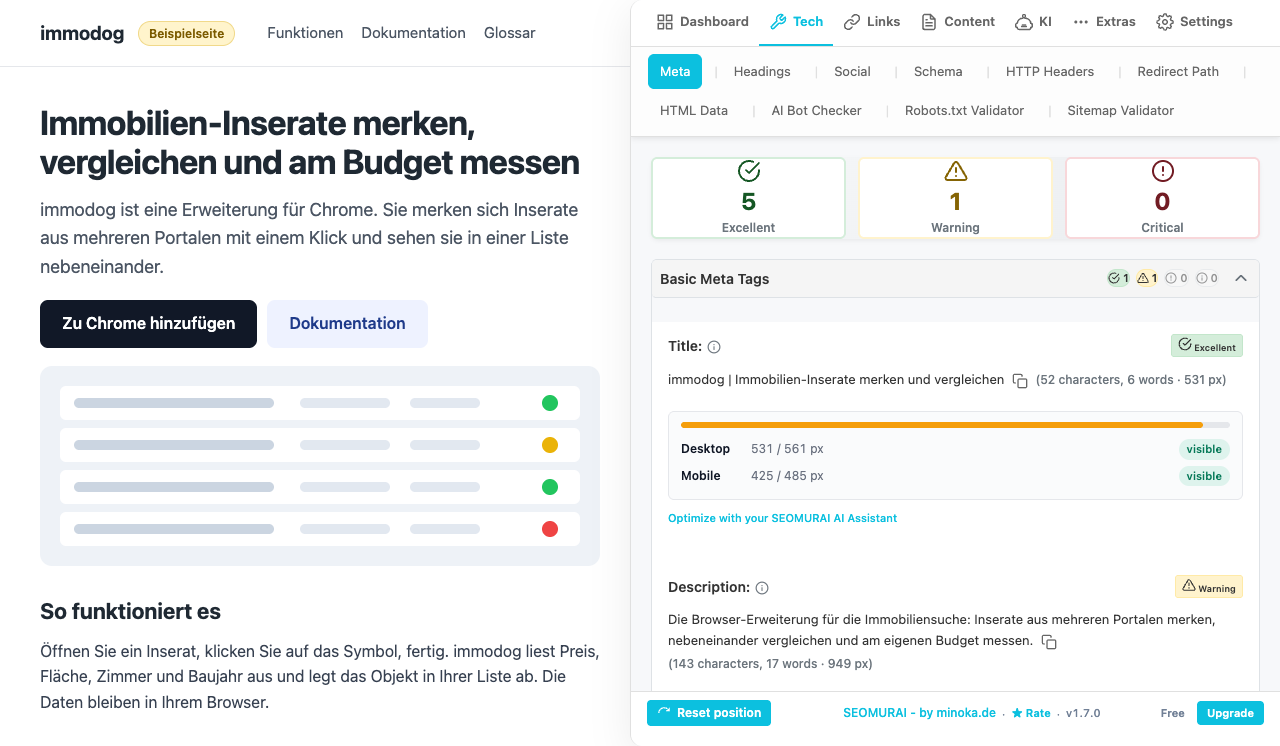
The Meta subtab reads the most important SEO tags from the <head> section: title, meta description, canonical URL, robots directive, lang attribute, charset, viewport and, where present, hreflang references. For each tag you get a color-coded status rating (Critical, Warning, Excellent, Info) plus a concrete recommendation. Title and meta description are additionally checked for length, so you see immediately whether they will be displayed in full in typical search result snippets. Since version 1.7, a meta description that is too long (more than 920 pixels) or too short (less than 400 pixels) is rated as a Warning instead of Critical; only a missing meta description remains a Critical finding.
2. Analyze the heading hierarchy
The Headings subtab displays all headings (H1 to H6) as an interactive tree structure. You see the hierarchy at a glance and immediately recognize whether levels were skipped, whether more than one H1 exists, or whether duplicate or empty headings are present. Statistics are shown for each level as well (how many H2, H3 and so on), which helps when assessing unusually deep or unusually flat structures.
3. Check Open Graph and Twitter Cards
The Social subtab reads all Open Graph and Twitter Card tags and shows a realistic preview of how a link would look on Facebook and on X (formerly Twitter). Below it, a table lists all social tags that were found, so you can see which fields are filled and which are missing. The preview uses the actual images, titles and descriptions specified in the respective tags.
4. Detect structured data
The Schema subtab finds all JSON-LD scripts containing structured data (Schema.org), lists the detected schema types and shows the complete JSON-LD code for inspection. Direct links take you to Google’s Rich Results Test and to the Schema.org validator, so you can move smoothly between the preliminary detection in the extension and the authoritative validation in the original tool.
Since version 1.7 there is also an optional color grouping by type: when the toggle is enabled, every key and its primitive value get a consistent color across the whole page, @type values are colored by their type and linked to new type chips in the card title, a legend with counters summarizes the detected types, and brackets are colored by nesting depth. This makes large JSON-LD blocks with several nested types much easier to read.
5. Read HTTP headers
The HTTP Headers subtab fetches the HTTP response of the server and displays it in full: status code, caching headers, security headers (CSP, HSTS, X-Frame-Options and more) and server information. This is often the fastest way to assess whether caching is configured cleanly, whether the security headers are up to date and whether the status code (200, 301, 404, 500 and so on) matches your expectations.
6. Trace the redirect path
The Redirect Path subtab follows the URL through all redirects to its final destination and presents the chain as a visual timeline. For each hop you see the HTTP status (typically 301 or 302) and the load time. An overly long or faulty redirect chain is a common, often invisible cause of SEO losses; here it becomes visible.
7. HTML data and DOM statistics
The HTML Data subtab analyzes the entire DOM and shows the code-to-text ratio, DOM statistics (total nodes, maximum nesting depth), a top 10 list of the most frequently used HTML tags and buttons for the official W3C validation of HTML and CSS. This helps you spot unusually bloated markup structures before you dive into performance reports.
8. Use the AI Bot Checker
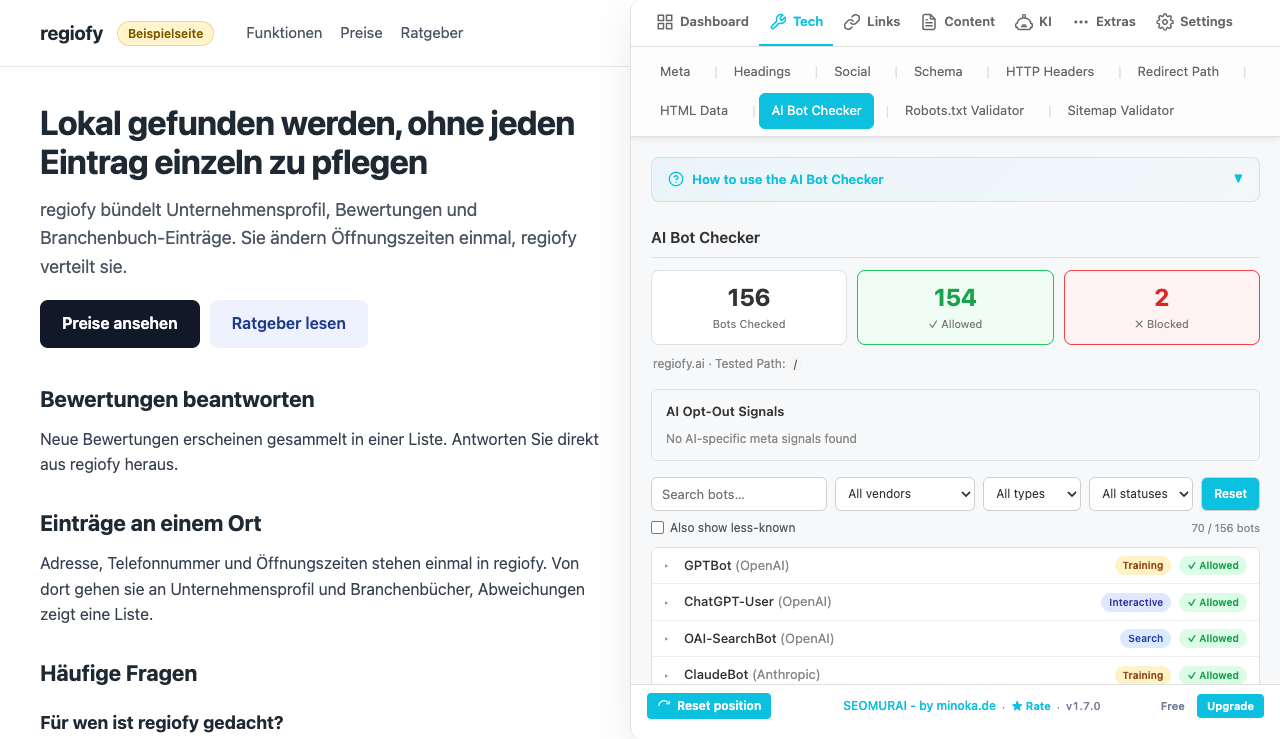
The AI Bot Checker subtab checks your robots.txt against 156 known AI crawlers (GPTBot, Google-Extended, ClaudeBot, anthropic-ai, CCBot, PerplexityBot, ByteSpider, DeepSeek, OpenAI Operator, Firecrawl and many more, mirrored from the ai.robots.txt community list) and shows for each bot whether it is currently allowed or blocked. A filter bar with full-text search plus filters by vendor, type and status, and a split into known and less-known bots, keep the expanded list manageable. In addition, meta robots signals on the page are evaluated, which let you control AI crawlers at the page level as well. At the top, three tiles show how many bots were checked, allowed and blocked.
9. Use the Robots.txt Validator
The Robots.txt Validator is a full RFC 9309 parser for the robots.txt of your domain. It analyzes the file line by line, checks the syntax, reports errors and warnings, collects all declared sitemaps and provides an interactive URL test: you enter a URL and a user agent, and the validator shows whether the combination would be allowed or blocked, with a complete decision trail. Direct links take you from the validator to the AI Bot Checker and back.
10. Use the Sitemap Validator
The Sitemap Validator, new in version 1.7 and free in every plan, checks XML sitemaps against the sitemap protocol 0.9. It verifies that the XML is well formed and reports issues with exact line numbers, checks the urlset or sitemapindex root element, the required loc entries (valid URL, at most 2048 characters), lastmod values in W3C datetime format, the allowed changefreq values and a priority between 0.0 and 1.0, and it watches the limits of 50,000 URLs and 50 MB per file. Best-practice warnings additionally flag http URLs, cross-host entries, duplicates and missing or future lastmod dates.
You can enter a sitemap URL directly or use the auto-discovery, which looks in the robots.txt and at common default paths; every candidate is verified with a HEAD request first, so dead guesses are not listed. If the current page itself is an XML sitemap, it is validated automatically. For a sitemap index, each child sitemap can be validated individually per click, and .gz compressed sitemaps are supported as well.
Frequently asked questions
Tips and frequently asked questions
How long can a meta description be?
Google typically truncates the meta description in the search results at around 155 to 160 characters, and slightly earlier in mobile snippets. SEOMURAI flags a description as too short when it stays well below that range and as too long when it goes well beyond it. The exact display depends on pixel width and the search query, so the length check serves as guidance, not as a rigid rule. Since version 1.7, both length findings are rated as a Warning instead of Critical; only a missing meta description remains a Critical finding.
Why does the Meta module sometimes show the wrong URL on a single-page application?
Single-page applications (for example many frameworks based on React or Vue) change the title and canonical only afterwards via JavaScript. SEOMURAI waits for the page to render completely before the analysis runs. If the extension still shows an outdated value, reload the browser tab, wait until the final content is visible, and only then open SEOMURAI. For dynamically loaded content this is the most reliable method.
Which schema types should I mark up at a minimum?
For most websites a sensible minimum markup includes: Organization or LocalBusiness on the home page, BreadcrumbList on subpages, Article or BlogPosting on editorial content, FAQPage for FAQ sections and Product with reviews for online shops. The Schema subtab shows what is actually present and which types were detected.
Should I block AI crawlers in robots.txt?
That depends on your strategy. If you do not want your content to be used for training or answer generation by large AI models, blocking them via robots.txt is a clear, documented signal. If, on the other hand, you want your content to appear in AI answers (for example as a source reference), allow the bots. The AI Bot Checker shows you the current state and makes a deliberate decision possible.
Why does the HTTP status result sometimes differ from what the browser shows?
Browsers often show only the final status after a redirect chain. Through the Redirect Path, SEOMURAI captures every single hop and its respective status. A page that looks like a 200 to you may in fact be reached through two or three 301s, with corresponding effects on load time and crawl budget. The full path is available in the Redirect Path subtab.
More topics in the documentation
Jump directly to the detail page for another menu.
- Overview: Getting started with SEOMURAI
- Dashboard: score, Key Issues and Quick Actions
- Links: Statistics, Analyse, Duplicates, Outlink Checker
- Content: Text Analysis, Keyword Highlighter, Image SEO, Image Analysis
- KI: LLMS.TXT Info and PRO modules
- DataForSEO: SERP, keywords, domain data and backlinks (BYOK)
- External checkers: W3C validator, Rich Results Test and context menu
- Settings: Language, API keys, backup and account
Want to try this feature directly in your browser?
Install SEOMURAI and run a complete Tech SEO check on your most important landing page.