
SEOMURAI Documentation · PRO
Sitemap Explorer: Read XML sitemaps and extract URL lists.
Find and load the XML sitemaps of the website you have open, including sitemap indexes and their child sitemaps. Build a complete URL list, check status codes in batch mode and export the result. Go to the PRO overview or the documentation overview.
PRO feature. 5 USD per month or 50 USD per year via ExtensionPay.
What the Sitemap Explorer in SEOMURAI does
XML sitemaps are the most reliable source for finding out which URLs a domain officially submits for indexing. Combined with a status check, they let you determine within a few minutes which of the submitted URLs are actually reachable, which are redirected and which return an error page. The Sitemap Explorer makes this analysis available directly in the browser, without an external crawler.
The Explorer processes single sitemaps as well as sitemap indexes with their child sitemaps, runs an optional batch status check and summarizes the result by status code. The CSV export is included in the PRO plan.
Since version 1.7 the Explorer also validates every sitemap while loading it. Each entry in the sitemap tree receives a badge that summarizes the result: valid, or the number of errors and notices found, with expandable issue details. A malformed single sitemap no longer aborts the whole load. If you only need a standalone conformance check without a PRO plan, SEOMURAI also includes a free Sitemap Validator in the Tech SEO section next to the Robots.txt Validator.
When the Sitemap Explorer is particularly useful
- When preparing audits, to build a complete content inventory.
- Before and after migrations, to make sure that no old URLs have disappeared.
- When uncovering inconsistencies between the URLs submitted in the sitemap and the URLs that are actually reachable.
- For competitive monitoring, to capture the content inventory of a competitor domain.
- When assessing overall sitemap hygiene: does it contain 404s, redirects or broken entries?
Step by step
1. Discover sitemaps
Open the website whose sitemaps you want to analyze, start SEOMURAI and switch to Links → Sitemap Explorer. Click “Search for Sitemaps”. SEOMURAI reads the sitemaps listed in the robots.txt and also checks common paths such as /sitemap.xml and /sitemap_index.xml.
2. Select and load sitemaps
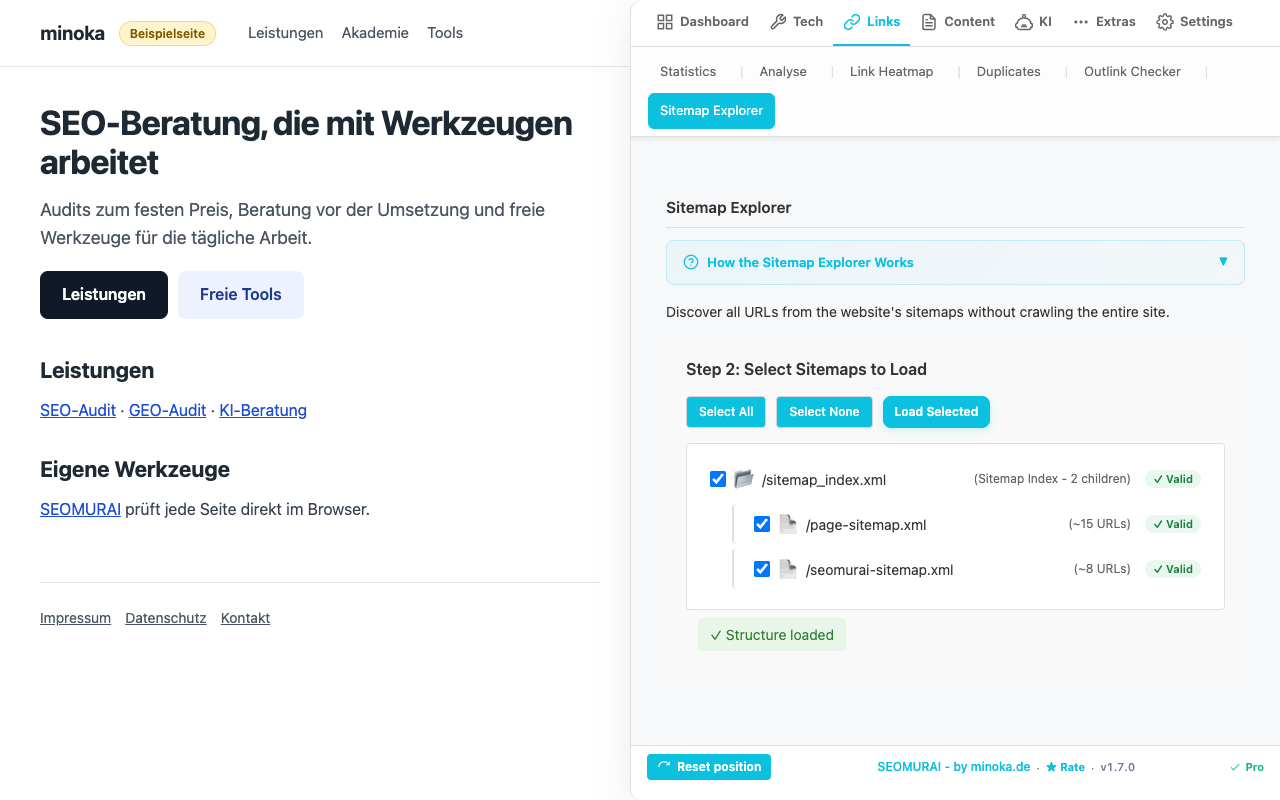
The sitemaps found appear as a tree: sitemap indexes with their child sitemaps and the approximate number of URLs in each. Make your choice with “Select All” or “Select None” and click “Load Selected”. SEOMURAI reads the <loc> entries along with lastmod, change frequency and priority, and “Step 3: Analyze URLs” shows the number of URLs, the URL groups and the oldest and newest change.
Validation runs while each sitemap loads. Every entry in the sitemap tree receives a badge that shows whether the sitemap is valid or how many errors and notices were found, and you can expand the issue details behind each badge. A malformed single sitemap no longer aborts the whole load, so the remaining sitemaps of an index are still read.
3. Start the status check
Under “HTTP Status Check (Batch)”, pick one of three modes: “Check All URLs”, “Sample 10%” or “Priority ≥ 0.8 Only”. Set the number of concurrent requests (5 to 50) and the timeout per URL (5 to 30 seconds), then start the check with the button below. SEOMURAI requests every URL with a HEAD request and follows redirects. If you check more than 100 URLs in “Check All URLs” mode, SEOMURAI asks for confirmation first, because the run can take a while and put load on the target server.
4. Evaluate the results
After the check, SEOMURAI shows four figures: Success (2xx), Redirects (3xx), Errors (4xx/5xx) and Total Checked. Below them, the URLs are grouped by status code; each group lists the first five URLs and expands to show the rest.
5. Export URLs and results
“Export URLs” saves the loaded URL list as CSV or JSON; the CSV columns are URL, Letzte Änderung, Priorität and Änderungshäufigkeit (last modified, priority and change frequency, labeled in German in every interface language). After a status check, a second export below the results saves them as CSV or JSON with the columns URL, HTTP Status, Status Text, Redirected and Final URL.
Frequently asked questions
Tips and frequently asked questions
How large can a sitemap be?
The Sitemap Explorer handles sitemaps with tens of thousands of URLs, and the XML specification allows up to 50,000 URLs per individual sitemap. For very large sitemaps or extensive sitemap indexes we recommend the “Sample 10%” or “Priority ≥ 0.8 Only” mode for the status check so that you do not run an unnecessarily large number of requests at the same time.
Does the Explorer also work with compressed sitemaps (.xml.gz)?
No. The Sitemap Explorer reads uncompressed XML sitemaps. To check a compressed sitemap, use the free Sitemap Validator in the Tech SEO section, which unpacks .gz files.
What should you do if the sitemap returns a 403 or 404?
A sitemap that answers with 403 or 404 counts as not found. The Sitemap Explorer looks for sitemaps in the robots.txt and at common paths such as /sitemap.xml and /sitemap_index.xml; there is no URL field. If your sitemap lives at a different path, list it in the robots.txt and SEOMURAI will find it on the next search. If the domain serves the sitemap only to signed-in users, it cannot be analyzed. To check a single sitemap at any address, use the free Sitemap Validator under Tech → Sitemap Validator, which has a field for the address.
Are image: and video: extensions evaluated as well?
Currently the Explorer focuses on the classic <url> entry with <loc>, <lastmod>, <changefreq> and <priority>. Specialized image and video sitemaps are read, but their extended fields are not evaluated separately. Let us know via the contact form if you need these fields.
Does the status check affect the log files of the target server?
Yes, every HTTP request is logged by the target server; that is in the nature of a status check. SEOMURAI uses the browser’s normal fetch function with your user agent. If you want a different behavior for a competitor sitemap, check only a sample instead of the entire list.
What is the difference between the Sitemap Explorer and the free Sitemap Validator?
The Sitemap Explorer is a PRO module for building complete URL inventories, running batch status checks and exporting the result as CSV; since version 1.7 it also validates each sitemap while loading and marks every tree entry with a badge. The Sitemap Validator is a free tab in the Tech SEO section next to the Robots.txt Validator and concentrates on one task: validating a single XML sitemap against the sitemap protocol 0.9, including best-practice warnings. Use the Validator for a quick conformance check and the Explorer for inventory and reachability analyses.
More PRO modules and documentation
- PRO overview: all modules, pricing, activation
- Link Heatmap: size and spacing of your links based on Fitts’ Law
- SEOMURAI Chatbot: chat interface with page context
- LLM SEO Team: specialized AI assistants
- Webhook Workflows: n8n, Zapier and Make
- AI Presets: pre-configured setups for four AI providers
- Markdown Export: entire pages as AI-optimized Markdown
- Back to the documentation overview (Free)
Unlock the Sitemap Explorer with PRO?
Install SEOMURAI and activate PRO directly in the settings to analyze sitemaps systematically.