
SEOMURAI Documentation · PRO
Markdown Export: Entire Pages as AI-Optimized Markdown.
Reduce an HTML page to structured Markdown with a single click, optimized as input for AI models and custom GPTs. Boilerplate, navigation and ads are removed automatically while the core content is preserved. See the PRO overview or the documentation overview.
PRO feature. 5 USD per month or 50 USD per year via ExtensionPay.
What the Markdown Export Does in SEOMURAI
If you regularly work with custom GPTs, your own AI models or briefing tools, you know the problem: HTML pages contain a lot of boilerplate alongside the actual content (navigation, cookie banners, sidebars, footers, ads). Raw HTML as AI input wastes tokens, distorts the context and frequently leads to worse results.
The Markdown Export solves this by intelligently reducing the page: it detects boilerplate, extracts the main content and converts it into a clean Markdown structure (headings, paragraphs, lists, code blocks, links). The result is a compact, AI-friendly representation of the same page that can go straight into custom GPTs, Claude Projects, Gemini Notebook (formerly NotebookLM) or a briefing file.
When the Markdown Export Is Especially Useful
- When building a custom GPT or a Claude Project that should be trained on content from your own domain.
- When creating content briefings based on a competitor page that ranks well.
- When researching longer articles that will be fed into an AI session as a source.
- When preparing knowledge bases (Gemini Notebook, Mem, Reflect, Obsidian) with content from the web.
- When versioning the content of a page at a specific point in time, for example for an audit archive.
Step by Step
1. Open the Target Page
Open the web page whose content you want to capture as Markdown. The export works on any normal page, including staging environments and password-protected areas, because processing runs locally in your browser.
2. Open the Markdown Export
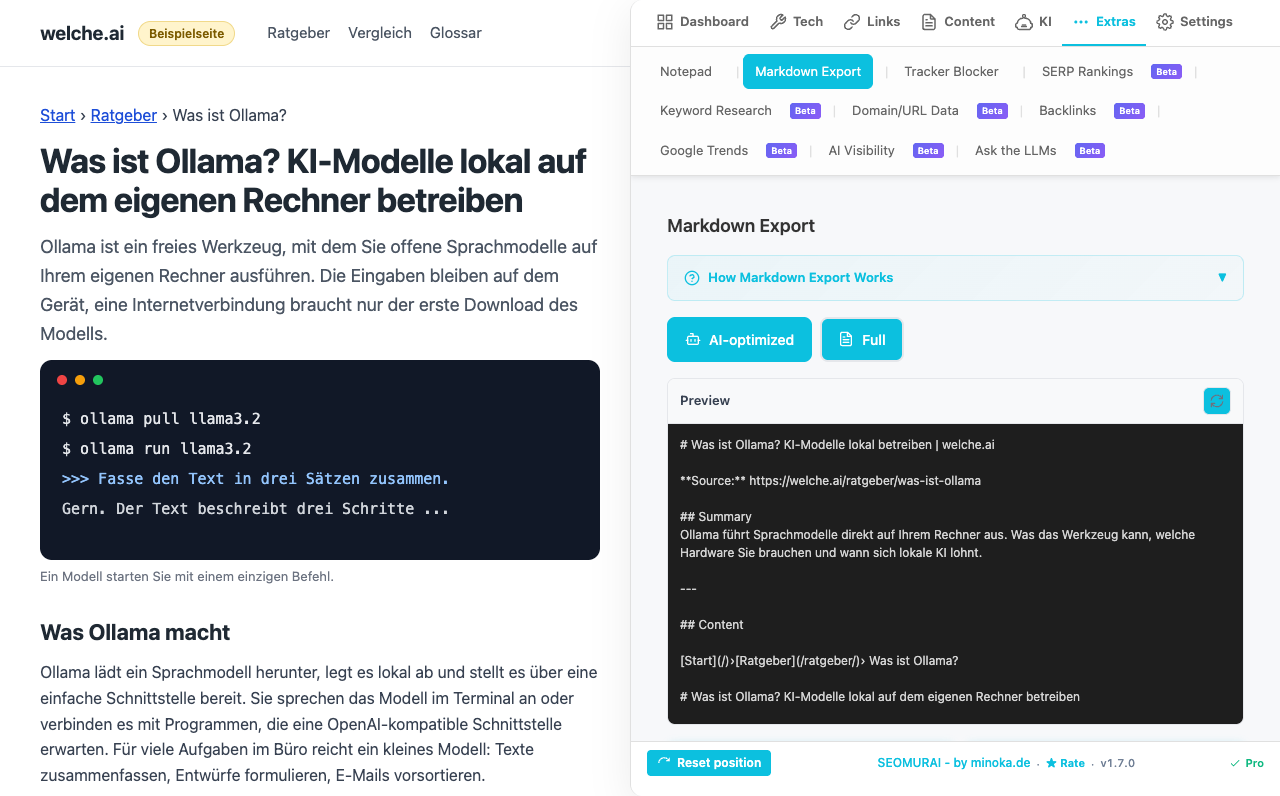
Click the SEOMURAI icon and switch to Extras → Markdown Export. As long as PRO is active, the preview of the open page as Markdown appears right away. Without PRO, the lock view appears with a note on how to activate it.
3. Choose a Mode
“AI-optimized” is the default: title, source, a summary taken from the meta description, and the main content of the page. With “Full” you tick what to include: Metadata, Headings, Main Content, Image List, Link List and Schema Markup, with the first three preselected. SEOMURAI looks for the main content in areas such as <main> or <article> and leaves out navigation, header, footer and ad areas. If the page has changed, renew the preview with the “Refresh” icon.
4. Review and Use the Markdown
Below the preview you will find two actions:
- Copy to clipboard: ready to paste into custom GPT configurations, Claude Projects, Gemini Notebook or any other application.
- Download: saves the content as a
.mdfile named after the page title and the date, ideal for archives or versioning.
The preview is there for checking and cannot be edited. If the detection picked up sections that are not relevant, trim the copied or downloaded result in your editor.
5. Combine Multiple Pages into a Knowledge Base
For extensive briefings or custom GPTs with multiple sources, repeat the export for each page and collect the Markdown files locally. A simple concatenation in your editor (or via a script) produces a consolidated knowledge source. For sitemap-based content inventories, combining this with the Sitemap Explorer is a natural fit, since it supplies the URLs to export.
Frequently Asked Questions
Tips and Frequently Asked Questions
Which Markdown extensions are supported?
Standard Markdown plus the most important extended elements: headings (H1 to H6), paragraphs, lists (ordered and unordered), code blocks, inline code, hyperlinks, images with alt text. Tables are output in GitHub Flavored Markdown (GFM). More complex HTML structures (nested tables, embedded widgets) are reduced to their readable core.
Are images included?
Images are inserted as Markdown references () with the original URL as the source and the alt text from the HTML. The image data itself is not embedded, since that would usually not be helpful for AI models. If you need the actual image files, use the bulk download as a ZIP archive under Content → Image Analysis.
How reliable is the boilerplate detection?
Very reliable on classic article and blog pages, since SEOMURAI finds the main content through elements such as <main> or <article> and leaves out navigation, header and footer. On online shops, app-like interfaces or very unusual layouts, the detection can occasionally pick up too much or too little. In those cases, trim the copied or downloaded result in your editor.
Does any data leave my browser during conversion?
No. The Markdown Export runs entirely locally in your browser. SEOMURAI processes the DOM of the page that is already loaded and delivers the result in the preview window for you to copy to the clipboard or save as a file. The result only leaves your machine when you paste it into an external application yourself.
Does the export work on password-protected pages?
Yes. Since processing happens on the already rendered DOM, it does not matter whether the page is publicly accessible. You can also use internal tools, staging environments and login areas as sources, and nothing about them is exposed outside your machine.
More PRO Modules and Documentation
- PRO overview: all modules, pricing, activation
- Link Heatmap: size and spacing of your links based on Fitts’ Law
- Sitemap Explorer: find sitemaps, validate them and check their URLs
- SEOMURAI Chatbot: chat interface with page context
- LLM SEO Team: specialized AI assistants
- Webhook Workflows: n8n, Zapier and Make
- AI Presets: save and switch your own AI configurations
- Back to the documentation overview (Free)
Unlock the Markdown Export with PRO?
Install SEOMURAI, activate PRO and convert your first page to clean Markdown in seconds.