
SEOMURAI Documentation · PRO
Link Heatmap: Visualize Link Size and Spacing Based on Fitts’ Law.
A color-coded overlay of your links by their distance to the nearest link, plus a rating of size and distance. At a glance you see where links sit too close together or are too small. See the PRO overview or the documentation overview.
PRO feature. 5 USD per month or 50 USD per year via ExtensionPay.
What the Link Heatmap in SEOMURAI does
Classic link reports treat every link the same: two links to the same URL count as two, regardless of where they sit on the page or how large they are. From the perspective of actual usage, that is not accurate. A small footer link is rarely clicked, a large call-to-action in the main content area is clicked often. The Link Heatmap translates this perception into a color-coded visualization.
The foundation is Fitts’ Law: the smaller a target and the closer it sits to other targets, the harder it is to hit. SEOMURAI rates every link by its size and its distance to the nearest link. The color shows link density: red means the link sits very close to another one, green means it has enough room.
When the heatmap is particularly useful
- When evaluating the impact of call-to-action buttons against competing inline links.
- When checking whether important internal links have enough room to their neighbors.
- When preparing A/B tests, to derive hypotheses for meaningful variations.
- When analyzing competitors, to see which link areas the competition prioritizes.
- When auditing footers and sidebars, where many small links often sit close together.
Step by step
1. Open the Link Heatmap in the Links tab
Switch to Links → Link Heatmap in the SEOMURAI menu. As long as PRO is active, you will see the heatmap controls with a large action button. Without PRO, the lock view appears instead, with a note on how to unlock PRO.
2. Activate the heatmap overlay
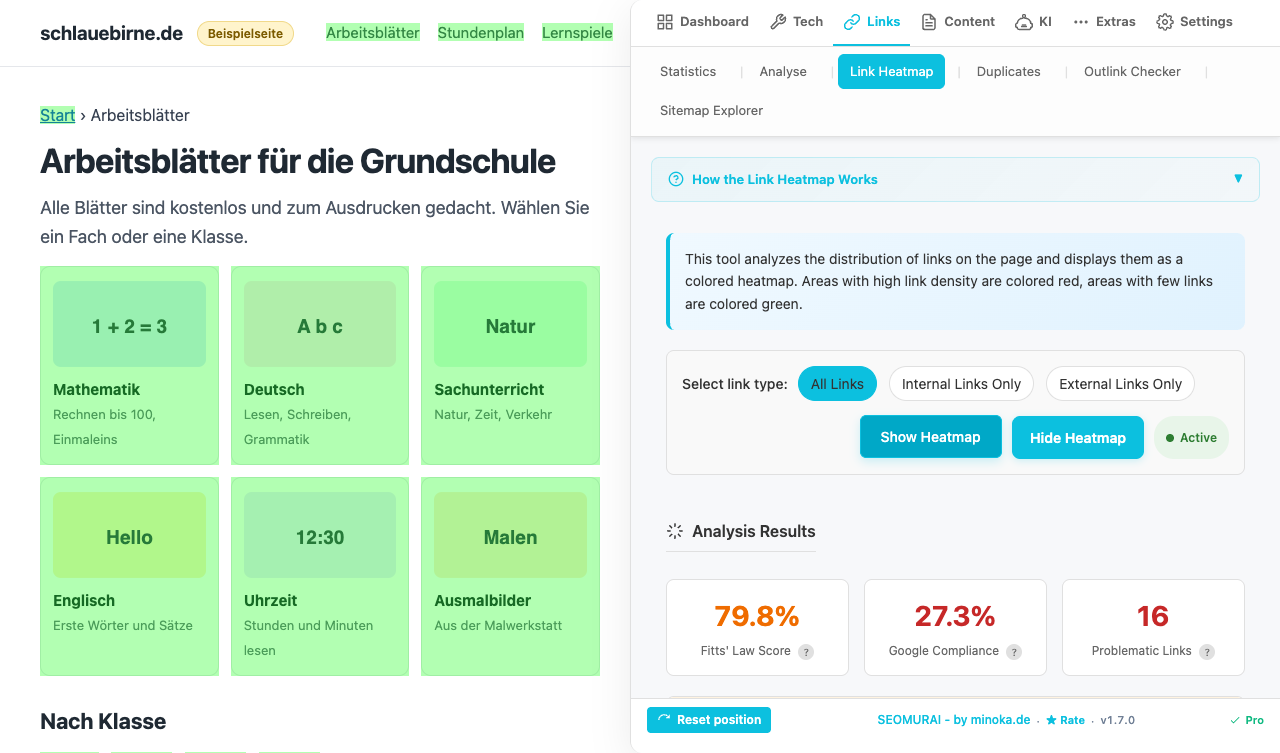
Under “Select link type”, choose all links, internal links only or external links only, then click “Show Heatmap”. SEOMURAI places a semi-transparent color layer over the links on the page. Areas with high link density turn red, areas with few links turn green, with orange and yellow in between. The page content itself remains readable, the colors only overlay the link areas.
3. Read the findings in the control panel
Analysis Results shows three values: the Fitts’ Law Score (an average of size and distance across all links), Google Compliance (the share of links that are at least 48 px in size and at least 32 px away from the nearest link) and the number of problematic links. Below, Mobile Usability Issues lists every problematic link with its size and distance, and “Scroll to link” takes you straight to it on the page.
4. Derive layout hypotheses
The visualization leads to concrete layout hypotheses. If an important call-to-action should turn greener, more distance to neighboring links is the most direct lever, while size counts toward the Fitts’ Law Score and Google Compliance. If several important links sit close together, prioritizing them pays off. Implement your assumptions in the CMS and compare the heatmap after a reload.
5. Hide the heatmap again
Use the “Hide Heatmap” button and the overlay disappears completely: it is removed from the page again, and the page content itself is never changed.
Frequently asked questions
Tips and frequently asked questions
Does the heatmap measure real click data?
No. Following Fitts’ Law, the heatmap rates how easy a link is to hit, based on its size and its distance to the nearest link. Real click data requires a tracking tool such as Hotjar or Microsoft Clarity. The strength of the SEOMURAI heatmap is that it works without tracking, without waiting time and on any page you like, including third-party pages.
Does the heatmap also work on long, scrolling pages?
Yes. The score is calculated for all links on the page, not only for the visible area. As you scroll, the colors follow the respective link areas. On very long pages the initial calculation can take a moment, after that it runs without delay.
Can I use the heatmap on competitor pages as well?
Yes. Since the analysis runs locally in your browser, it works on any page you can load. No sign-in and no domain registration is required. Competitive analysis with the heatmap is one of the most common use cases.
Is the analysis suitable for mobile layouts?
The heatmap works with the current viewport. If you resize the browser window to a mobile width or activate the mobile mode of the developer tools, SEOMURAI calculates sizes and distances for exactly that rendering. This lets you directly compare how your layout performs in desktop and mobile view.
Does the heatmap change my page permanently?
No. The overlay sits in its own layer above the page, and the actual page code remains unchanged. When you hide it, the overlay is removed without residue, and refreshing the page immediately restores the original state.
More PRO modules and documentation
- PRO overview: all modules, pricing, activation
- Sitemap Explorer: find sitemaps, validate them and check their URLs
- SEOMURAI Chatbot: chat interface with page context
- LLM SEO Team: specialized AI assistants
- Webhook Workflows: n8n, Zapier and Make
- AI Presets: pre-configured setups for four AI providers
- Markdown Export: entire pages as AI-optimized Markdown
- Back to the documentation overview (Free)
Unlock the Link Heatmap with PRO?
Install SEOMURAI and activate PRO directly in the settings. The heatmap is available to you immediately on every page.