
URL Groups
Free feature
URL Groups
Separate collections of URLs for projects, clients, and campaigns. The organizational foundation of every bulkU workflow.
Think of groups as folders: Just like you organize files into folders on your computer, groups help you organize URLs by context or purpose.
What Are URL Groups?
A URL group is a named collection of URLs that you can manage independently. Each group has its own:
- URL list: The URLs stored in this group
- Tags: Labels on the URLs in this group; the tags themselves are shared by all groups
- Settings: Opening preferences (delay, batch size, etc.)
- Metadata: Last update time and URL count
Common Use Cases
- By Project: “Website Redesign”, “Q4 Campaign”, “Research Paper”
- By Client: “Client A”, “Client B”, “Internal Projects”
- By Purpose: “Daily Checks”, “SEO Audit”, “Competitor Analysis”
- By Status: “To Review”, “Approved”, “Archive”
Creating Groups
Creating a new group is quick and straightforward.
1. Open the Groups Tab
Click the bulkU icon in your browser toolbar to open the extension, then navigate to the “Groups” tab.
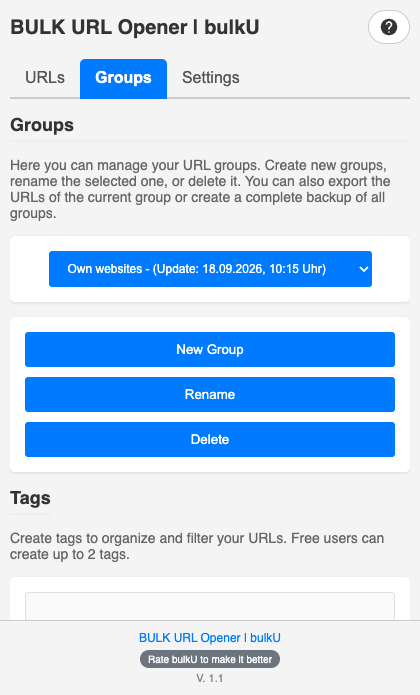
2. Click “New Group”
Click the “New Group” button to open the creation dialog.
3. Name Your Group
Enter a descriptive name that clearly identifies the purpose of this group. Good names are specific and meaningful.
Naming tips: Use clear, descriptive names like “Client Website Audit” instead of vague names like “URLs 1”. You will thank yourself later!
4. Confirm Creation
Click “Create” and your new group is ready to use. It will automatically become the active group.
Free version limit: You can create up to 5 groups in the free version. Upgrade to Pro for unlimited groups.
Managing Groups
Once you have created groups, you can easily manage them to keep your workflow organized.
Switching Between Groups
Use the dropdown menu at the top of the extension to switch between groups. The currently active group is displayed prominently.
Renaming Groups
- Go to the Groups tab
- Select the group you want to rename
- Click the “Rename” button
- Enter the new name and confirm
Deleting Groups
- Go to the Groups tab
- Select the group you want to delete
- Click the “Delete” button
- Confirm the deletion (this cannot be undone)
Warning: Deleting a group permanently removes all of its URLs and settings; the tags remain available to your other groups. Make sure to export your data first if you need a backup!
Duplicating Groups
Want to create a similar group? You can duplicate an existing group:
- Export the group as JSON
- Create a new group
- Import the JSON file into the new group
- Rename the new group as needed
Group Metadata
Each group displays helpful metadata to keep you informed:
- URL Count: Total number of URLs in the group
- Last Updated: When the group was last modified
Organization Tips
Make the most of groups with these proven strategies:
1. Use a Consistent Naming Convention
Develop a naming pattern and stick to it:
- By Client: “[Client Name] – [Project]” (e.g., “Acme Corp – SEO Audit”)
- By Date: “[Project] – [Date]” (e.g., “Website Audit – Nov 2025”)
- By Status: “[Status] – [Project]” (e.g., “Active – Client Website”)
2. Archive Completed Projects
Instead of deleting old groups:
- Export the group as JSON
- Store the backup in a dedicated folder
- Delete the group from bulkU to free up space
- Re-import if you need it later
3. Create Template Groups
For recurring workflows:
- Create a group with common URLs and tags
- Export it as a template
- Import and rename for each new project
4. Use Groups for Different Workflows
- “Inbox”: Temporary storage for URLs to process later
- “Daily Checks”: URLs you review regularly
- “Archive”: Completed projects for reference
- “Templates”: Reusable URL collections
Group Limits
Understanding the limits helps you plan your organization strategy:
| Feature | Free Version | Pro Version |
|---|---|---|
| Number of Groups | 5 groups | Unlimited |
| URLs per Group | 150 URLs | Unlimited |
| Tags (all groups combined) | 2 tags | Unlimited |
Need more?Upgrade to Pro for unlimited groups, URLs, and tags.
Best Practices
Follow these best practices for optimal group management:
✅ Do:
- Use descriptive, meaningful names
- Keep groups focused on a single purpose
- Export backups regularly
- Archive completed projects
- Review and clean up groups periodically
❌ Do not:
- Create too many groups (keep it manageable)
- Use vague names like “Group 1” or “Test”
- Mix unrelated URLs in the same group
- Delete groups without backing up first
- Let groups become cluttered with outdated URLs
What is Next?
Now that you understand groups, learn how to populate them with URLs:
Continue with another topic
Jump straight to a related page in the bulkU documentation.
Adding URLs
Paste, drag, import, or extract URLs from any text.
Tag System
Categorize and filter URLs with custom labels.
Scheduled Opening
Automate daily and weekly URL routines.
For SEO Professionals
Workflows for audits, backlinks, and SERP review.
bulkU Pro Overview
Every Pro feature at a glance.
Ready to try bulkU?
Install the free Chrome extension and put this into practice.